
How to Securely Embed Reports, Dashboards, Charts, and Pivot Tables in WordPress Using a WordPress Reports Builder Plugin
WordPress runs a huge part of the web. At the same time, modern businesses need data analytics. They use dashboards, charts, KPIs, pivot tables, and reports to track performance.
How can you embed analytics into WordPress pages (public or private) without exposing the reporting system or backend panels?
This tutorial answers that question using SRM Embed – Smart Report Maker. It is a WordPress reporting plugin built for secure embedding. It lets you embed interactive reports, charts, pivot tables, and dashboards. You keep full control and a clean user experience.
By the end, you will know how to embed interactive WordPress analytics with strong security, good performance, and full control.
Why Embedding Data Analytics in WordPress Matters
WordPress sites are no longer just blogs.
They are corporate websites, SaaS platforms, internal dashboards, and member portals.
When you embed analytics in WordPress, you can:
- Show live dashboards and reports, not screenshots.
- Share interactive charts with drill-down with teams or customers.
- Publish WordPress data analytics in admin-only or member-only pages.
- Keep reports automatically updated without manual exports.
This is exactly what Smart Report Maker (SRM) and the SRM WordPress plugin are built for.
Step 1: Install the SRM Embed WordPress Plugin
Download the official plugin from the WordPress Plugin Directory:
To install the plugin:
- Log in to your WordPress Admin Dashboard.
- Go to Plugins → Add New.
- Click Upload Plugin.
- Upload the plugin ZIP file.
- Click Install Now, then Activate.
After activation, you will see a new menu item: SRM Embed.
This menu contains the plugin settings and shortcode tools.
Step 2: Prepare Smart Report Maker (SRM)
To embed dashboards or reports, you need access to Smart Report Maker.
This is where you create and manage analytics.
If you already have an SRM installation, continue to the next step.
If not, you can test everything using the official SRM demo:
👉
https://demo.mysqlreports.com/
The demo includes ready dashboards, reports, charts, and KPIs.
You can embed them right away.
This is perfect for testing before production.
Step 3: Use the SRM WP Plugin Page (One Page for Everything)
Inside Smart Report Maker, open:
Embed Manager → SRM WP Plugin
This page is the key to the integration:
🔹 All WordPress settings and embed URLs are in one place
🔹 No need to search multiple SRM sections
🔹 WordPress configuration values are generated here

Many tools require jumping between settings, security, and resource pages.
With SRM, WordPress embedding is centralized on one page.
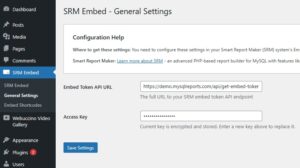
Step 4: Configure Plugin General Settings in WordPress
Go back to WordPress and open:
SRM Embed → General Settings
The setup is intentionally simple.
You only need two values.
Both values come from the same SRM WP Plugin page:
- Embed Token API URL
- Access Key
Copy the values from SRM, paste them into WordPress, then click Save Changes.
Now your WordPress site is securely connected to Smart Report Maker.
You are ready to embed analytics.
Step 5: Select an Analytics Resource in SRM
Go to:
Smart Report Maker → Embed Manager → SRM WP Plugin
In the Embed Shortcodes section:
- Select the resource type (Dashboard, Report, Chart, KPI, Pivot Table).
- Choose the specific resource (example: Dashboard1 in the demo).
- The resource URL appears instantly.
- Copy the generated URL.
This URL identifies the exact analytics resource you will embed in WordPress.
Step 6: Create an Embed Shortcode in WordPress
Open:
SRM Embed → Embed Shortcodes
Then do the following:
- Name the resource (example: Sales Dashboard).
- Paste the resource URL from SRM.
- Keep other settings as-is.
- Change Height from 800px to 1500px so the dashboard shows fully.
Click Create Shortcode, then copy the shortcode.
Step 7: Embed the Dashboard in a WordPress Page
Finally:
- Open the WordPress page or post where you want the analytics.
- Paste the shortcode into the editor.
- Save or preview the page.
🎉 That’s it.
Your embedded analytics will look clean and seamless:
- The dashboard appears inside the WordPress page.
- Charts are interactive and drill-down works smoothly.
- No SRM admin panels are exposed.
- Only analytics content (and related links) is shown.
This creates a professional, distraction-free WordPress analytics experience.
Final Notes
The SRM Embed plugin removes the complexity of most WordPress reporting tools.
It keeps setup simple and secure.
Because SRM centralizes all configuration and embed logic on one SRM page,
you can deploy secure, interactive WordPress dashboards and reports fast.
You can also test everything using the ready-made SRM demo.
Whether you need internal dashboards, client portals, or public analytics pages,
this approach gives you full control without sacrificing security or usability.