
Build Report Chains Using the Report Linking Feature in Smart Report Maker
Starting from version 11, Smart Report Maker allows you to create powerful report chains by linking multiple reports together. This lets users explore data step by step instead of viewing everything in a single flat report. For example, a user can start with a Customer List, click a specific customer to see only their invoices, click an invoice to view its products, and finally drill into the supplier of each product. Each step is automatic and context-aware.
Report Linking and Relationships: Turn Isolated MySQL Reports into Connected Insights
Benefits of SRM Report Linking
Smarter Data Exploration
Instead of overloading one report with too much information, you can create a logical chain of reports connected through parameters. Users explore data gradually, moving from one level to the next.
Better Navigation Experience
Users can navigate from summaries to detailed data with a single click instead of applying filters manually. Even when linked reports are embedded in another website or application, the drill-down behavior continues to work seamlessly.
Context-Aware Filtering
Each report in the chain automatically receives the right parameters from the previous report. Users always see only the data relevant to their current selection — no manual filtering needed.
Works with Embedded Reports
Report chains continue to function when embedded in WordPress or custom PHP applications. Drill-down navigation works exactly the same way inside or outside Smart Report Maker.
Improved Performance
By breaking data into logical steps, report chains reduce the load on each individual report. This improves query performance and keeps the interface responsive even with large datasets.
Multi-Level Drill-Down
Build long, multi-step report chains — from customers to invoices to products to suppliers. There is no limit to the number of levels you can chain together for deep data exploration.
Report Chain Examples
The following examples showcase the report linking capabilities of Smart Report Maker. All reports are generated from existing MySQL databases across a variety of business industries.

Clothing Store
From the Product Details report, you can navigate to related reports for the selected product. Likewise, the Current Stock report provides access to all related stock information.

Pet Clinic
From the Pets report, you can navigate to related reports for the selected pet. Likewise, the Medical Records report provides access to related prescriptions for the selected pet.

Food & Beverage Company
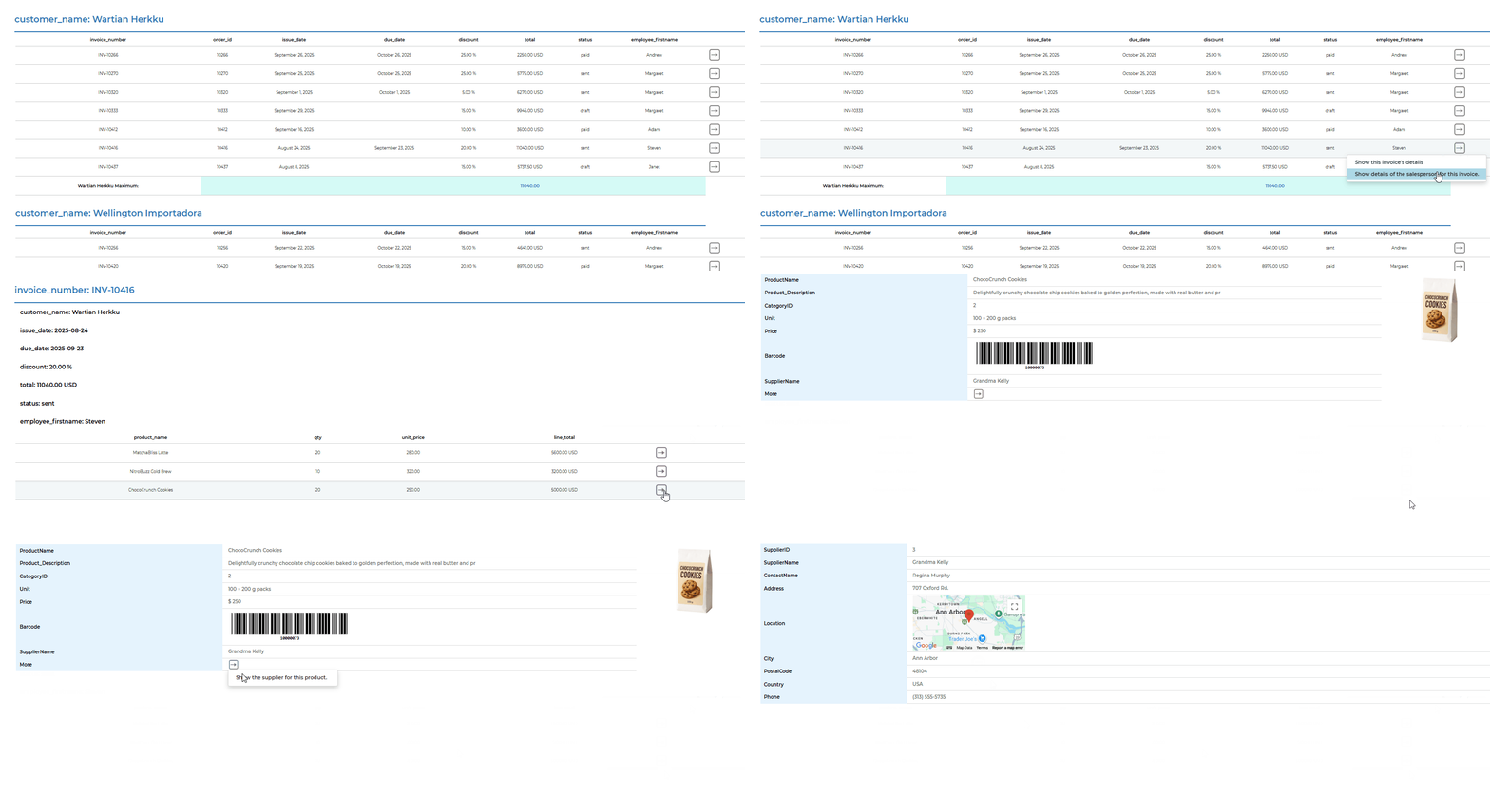
From the Invoices per Customer report, you can navigate to the selected invoice, explore the products included in that invoice, and then continue to the supplier details for each product.
Types of Report Relationships in SRM
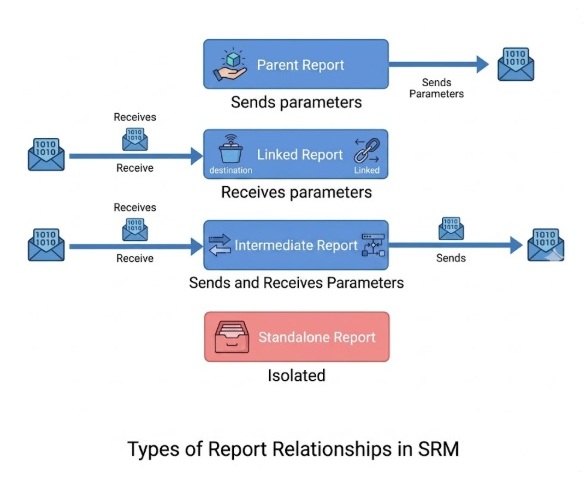
Linked Report
Receives parameters from a parent report or directly through the URL, and uses them to filter its data accordingly.
Parent Report
Sends parameters to another report when a value is clicked. Includes a Parameter Mapping page to map columns to linked reports.
Intermediate Report
Used in multi-level chains. Receives a parameter from one report and passes another parameter to the next report in the chain.
Standalone Report
Works independently and cannot be linked to or from any report. Ideal for reports that do not require drill-down navigation.
Best Practices for Building Report Chains
Create Reports in the Right Order
Always follow this sequence: Linked Report → Intermediate Report (if needed) → Parent Report. Start with the Linked Report because the parent and intermediate reports need to map their parameters to fields that already exist in the linked report. Defining it first ensures the chain works correctly.
Choose Parameters Carefully
- The parameter you map in the parent must exist in the linked or intermediate report.
- Make sure field names and expected parameters match.
Use “If Empty” Wisely
Both linked and intermediate reports include an “If Empty” setting that controls what happens when no parameter is passed. You can choose to show all records or use a default value for the parameter. Choosing the right behavior ensures the report does not break or reveal unintended data, improves performance, and helps users focus only on the data relevant to their current selection.
Frequently Asked Questions
A: Report linking allows you to connect multiple reports so users can navigate data step by step by clicking values in a report. A report chain is a sequence of linked reports where each report passes context (parameters) to the next, enabling guided drill-down from summaries to detailed records.
A: Yes. You can link a single Customers Report to multiple related reports. For example, the customer report can be linked to an Accounts Report to view each customer’s balance, and also to an Invoices Report to display all invoices for that customer. From there, users can drill down further into invoice details or any other relevant reports you choose.
A: Report chains keep reports clear and focused. Instead of overloading one report with many joins and filters, you guide users through data logically, improving readability, performance, and overall user experience.
A: A Parent Report sends parameters when users click a value, while a Linked Report receives those parameters and filters its data accordingly. The Parent controls navigation, and the Linked Report displays the related details.
A: An Intermediate Report is useful in multi-level report chains. It receives a parameter from one report and passes another parameter to the next report, allowing you to build complex drill-down paths across several reports.
A: Yes. Linked reports can receive parameters directly through the URL, which makes them ideal for embedding reports in websites, dashboards, or external applications while still filtering data correctly.
A: You control this behavior using the “If Empty” option. You can choose to show all records or apply a default value, ensuring the report behaves safely and predictably.
A: Yes. Drill-down navigation continues to work even when reports are embedded in platforms like WordPress or custom applications, without requiring users to manually reapply filters.
A: The recommended order is: Linked Report → Intermediate Report (if needed) → Parent Report. This ensures required parameters already exist and can be mapped correctly. For a detailed video tutorial on implementing linked reports, please check this tutorial.
A: Yes. Report linking is especially useful for large datasets because it breaks data into logical steps, improves performance, and helps users focus only on the data relevant to their current selection.