
One Smart Report Maker Installation for Multiple PHP Client Applications
As a PHP developer or solution provider, you often manage multiple client applications.
Each client usually has their own database, users, and reporting needs.
But installing a separate reporting system for every client becomes slow and hard to maintain.
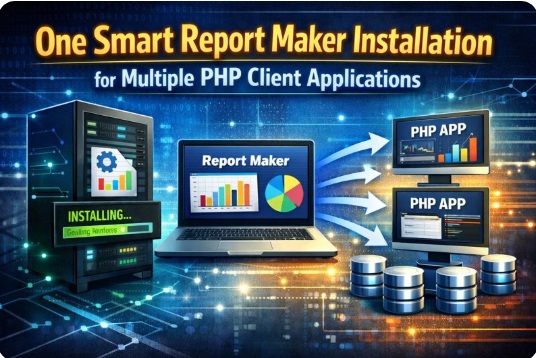
A common question is:
If I have multiple PHP applications for different clients using a single Smart Report Maker installation,
can I securely manage access per client?
And can I embed reports, charts, and dashboards into each client’s application separately?
The answer is yes.
Smart Report Maker supports both use cases:
- Use SRM as a central reporting platform.
- Embed reports, charts, and dashboards inside your PHP applications.
These two scenarios have different security needs.
So it’s important to understand the difference.
Two Common Use Cases for Smart Report Maker in Multi-App Environments
In this tutorial, we cover the two most common scenarios.
Both work with one SRM installation and multiple client applications.
-
Scenario 1: SRM as a shared analytics portal.
Users log in directly to Smart Report Maker.
Each client has its own group.
Each group sees only its own reports, dashboards, and charts.
This approach is simple and secure.
It works well when users accept a central reporting portal. -
Scenario 2: Embedded analytics inside each client’s app.
You build reports and dashboards in SRM.
Then you embed them inside each client’s PHP application.
Users log in to your application, not to SRM.
Reports appear inside your app UI.
This is more advanced, so it needs stronger security.
That’s why SRM provides the Embed Manager and Access Keys (version 11+).
Part 1: Using Smart Report Maker Without Embedding (Simple Setup)
In many cases, clients can log in directly to SRM to view their reports and dashboards.
Typical Setup
- Create a database connection for each client.
- Create a group for each client.
- Assign reports and dashboards to the client’s group.
- Create users and assign them to the correct group.
How This Works
- You remain the Admin.
-
Each client has:
- Its own user accounts (normal users, not admins).
- Its own group.
-
Each group has access only to:
- Its own reports, dashboards, and charts.
Part 2: Embedding Reports, Charts, and Dashboards (Advanced & Secure)
In this scenario, SRM becomes an embedded analytics engine.
Users do not open SRM directly.
Instead, they see reports and dashboards inside your client applications.
Embedded analytics can appear:
- Inside apps hosted on the same domain as SRM (same origin).
- Inside apps hosted on different domains (approved origins only).
In both cases, users log in to your application.
They see analytics inside your UI.
And each user sees only what matches their client and permissions.
Because embedding is more sensitive, SRM adds a dedicated security layer.
Starting from version 11, SRM includes the Embed Manager and Access Keys.
SRM embedding security includes:
- The Embed Manager.
- Access Keys and embedding tokens.
- Group-based permission binding.
- Embedding origin restrictions.
This system is designed for developers who embed analytics into external applications.
Step 1: Create a Database Connection for Each Client
Most clients have separate databases.
Start by creating one data connection per client.
Go to: Settings → Data Connections
For each client:
- Add a dedicated database connection.
- Use a clear naming format (example:
Client_A_DB). - Store credentials for that client only.
This lets one SRM installation connect to multiple independent databases.
Step 2: Create a Group for Each Client
Groups keep clients separated.
Users, reports, and dashboards are assigned to groups.
So each client sees only their own analytics.
Go to: Settings → Users → Groups
For each client:
- Create a group using the client’s name.
- This group represents everything the client can access.
Later you will:
- Assign reports and dashboards to this group.
- Bind access keys to this group (for embedding).
Step 3: Create an Access Key per Client (Version 11+)
An Access Key controls embedded analytics.
It defines who can embed, what they can load, and where embedding is allowed.
Think of it as a controlled gateway between SRM and your client’s application.
Without a valid key, embedded analytics will not load.
Go to: Access Control → Embed Manager → Create Access Key
Create one access key per client (or per application).
This keeps access separated and prevents cross-client access.
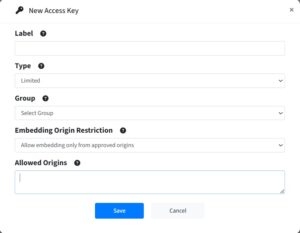
When creating an access key, configure these settings:
-
Label: a friendly name for your reference.
Example: Client A – Embed Key. -
Type: use Limited for multi-client setups.
Limited keys are tied to groups and permissions.
Avoid Full keys in shared environments. -
Group: select the client’s group.
This forces the key to load only that group’s resources. -
Embedding Origin Restriction: define where embedding is allowed.
If apps are on different domains, whitelist each domain (example:https://client-a.com).
This adds strong protection even if a key is exposed.
Step 4: Create Client-Specific Reports and Dashboards
Now you can safely create analytics.
For each client:
- Build reports, charts, and dashboards.
- Use only the client’s database connection.
- Assign access only to the client’s group.
⚠️ This step is critical.
Group assignment prevents clients from seeing each other’s data.
Step 5: Generate Embed Files Using the Embed Manager
For each report or dashboard you want to embed:
- Open the Embed Manager.
- Create a new embed file.
- Select:
- The resource (report, chart, or dashboard).
- The correct access key for that client.
- SRM generates a native PHP embed script for that resource.
Step 6: Integrate the Embed File into Each Client’s PHP App
Inside the client’s PHP application:
-
Open the embed file in a text editor.
You will see clear sections to add custom code
before or after the embed.
Use these sections to connect embedding with your app’s login and permissions. -
If you repeat the same custom logic across many embed files,
useembed_preferencesto centralize shared authentication and customization.
This keeps embed files clean and easier to maintain. - Add the embed files to your application pages.
Conclusion
Running Smart Report Maker for multiple clients can be simple or advanced.
It depends on your use case.
- Direct usage: users + groups.
- Embedded analytics: Embed Manager + Access Keys (v11+).
When you choose the right security model, you can serve many client applications
from one SRM installation.
You can embed reports, charts, and dashboards safely.
And you can keep every client fully isolated.