
⚠️ Important Note
Having a hosting control panel such as cPanel, Plesk, or CWP does not require you to use a panel-specific installation method. The Direct Upload Method works seamlessly with cPanel, Plesk, and CWP and remains the simplest option across all hosting types and control panels, while the method listed below is provided as an optional alternative.
This post explains how to install Smart Report Maker using Plesk. Smart Report Maker provides an installer script that automates the installation across various environments, including Linux distributions such as Ubuntu, Fedora, Debian, Red Hat, and CentOS, with support for both Apache and Nginx. However, this tutorial focuses specifically on installing Smart Report Maker with Apache on a Linux server running Plesk.
1. Prepare your files
After purchasing and downloading the full version from our download area, navigate to the directory matching your server’s PHP version. You will find:
srmdirectory – Contains all system files.install.sh– Shell script for installation on Linux.install.ps1– PowerShell script for Windows installation.
Tip: Compress the srm directory into a .zip or .tar.gz file to speed up upload.
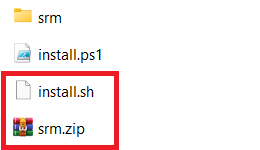
2. Upload your files in Plesk
- Log in to Plesk.
- Go to Files from the left-hand menu.
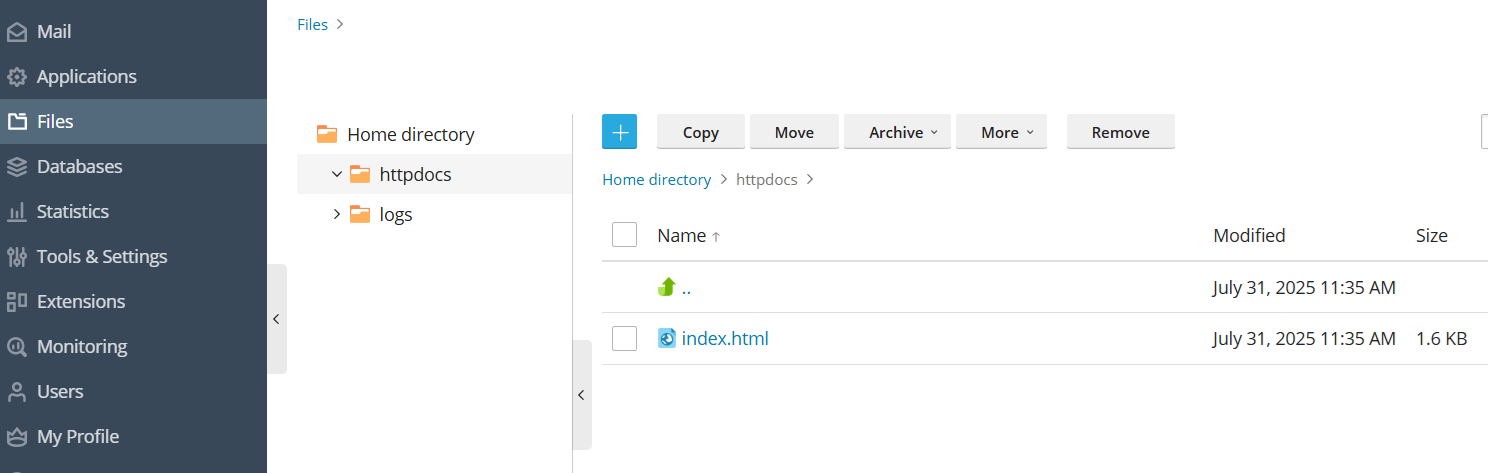
- Navigate to the desired location inside the httpdocs folder (or a subdirectory) — this is your installation directory.
- Upload the archived
srmdirectory and theinstall.shscript. - Once uploaded, select the archive and click Extract Files.
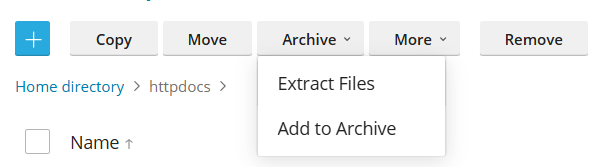
- Check that:
srmcontainsdashboard,modules, andsrm_install- Both
srmandinstall.share at the same directory level
3. Set correct permissions
- In Plesk, go to Files from the left-hand menu.
- Navigate to the installation directory where you uploaded
srmandinstall.sh. - For the
srmfolder:- Click the three-dot menu (⋮) to the right of the folder name.
- Select Change Permissions from the dropdown.
- Set the permissions to 755.
- Repeat the same process for
install.sh. - Make sure
install.shhas execute permission enabled; otherwise, the installation will fail.
4. Create or assign a MySQL database
Smart Report Maker requires a MySQL database that it will use internally to store its own system data.
This includes information for its processes, user accounts, user groups, permissions, settings, and scheduling data.
- In Plesk, go to Databases from the left-hand menu.
- Either select an existing MySQL database or click Add Database to create a new one.
- If creating a new database:
- Enter a database name.
- Select MySQL as the type.
- Create a database user with a secure password.
- Assign the user All Privileges to the database.
Note: You can choose to use a database that is also used for your reports’ data, but most users prefer creating a separate database so SRM’s system data is kept isolated from reporting data.
5. Access the terminal in Plesk
To run the installation script, you’ll need shell access to your server.
- In Plesk, go to Websites & Domains from the left-hand menu.
- Find the domain or subdomain where you uploaded Smart Report Maker.
- Look for the Open in Terminal icon:
- In the card view, you’ll see a black terminal icon labeled Open in Terminal under the domain name.
- In the list view, click the down arrow next to the domain name and select Open in Terminal.
- If Open in Terminal is not available, your hosting provider may have disabled it. In that case, you can connect via SSH using a terminal application on your computer.
6. Run the installation script
After login to your terminal or ssh connection run the following commands:
- Verify your current location by running:
ls -ahl- Move to the installation directory where you uploaded both the “srm” folder and the “install.sh” script by running the following command:
cd path_to_your_installation_directory- Confirm that both the “srm” folder and the “install.sh” script are present in the current directory and have the correct permissions by running:
ls -ahl- Once you run the installer, it will perform the following tasks:
- Check if Git is installed. If Git is available, it will use it; otherwise, it will install Git and its dependencies.
- Execute all necessary commands to install Smart Report Maker’s dependencies using Composer.
- Create the necessary symbolic links (soft links).
- Create a cron job for sending scheduled reports.
- Adjust the directory permissions as required.
- To run the installer, use this command
./install.shIf you encounter ./install.sh: Permission denied, please run the following command:
sudo chmod +x install.sh && ./install.sh- If you are using Apache, The installer will complete all tasks mentioned in the previous points and display a success message with zero errors.
- Once the installer finishes and displays a success message with zero errors, delete the installer script by running the following command:
rm -f install.sh
- If you’re unable to delete
install.shfrom the command line, you can use File Manager to remove it.
7- Complete setup
Finally, open your preferred web browser and go to:
https://your_domain_name/path-to-your-Installation-Directory/srm/dashboard/setup
Note: Use the following URL only if the URL in point 9 results in an error.
https://your_domain_name/path-to-your-Installation-Directory/srm/dashboard/public/index.php/setup
If this alternative works, please investigate why the redirection in the .htaccess file didn’t work, as it’s important for security reasons.
After successfully launching the web installer, click here to proceed with the installation.