
Smart Form Maker is a powerful yet easy-to-use PHP Form Builder that generates professional PHP CRUD forms for MySQL and MariaDB databases without writing any code. Its intuitive, step-by-step form-building wizard is designed around the familiar experience of the popular Microsoft Access Form Wizard, making it easy for both beginners and experienced developers to build database forms quickly. You can create everything from single-record and multi-record forms to editable grids and sophisticated master-detail forms with one or more related detail sections. The wizard automatically maps your database columns to suitable form controls, while giving you the flexibility to customize the appearance of each field using a wide range of input and display options. Smart Form Maker also provides secure file handling for files submitted through your forms, including flexible options for storing and displaying uploaded files. With its familiar wizard-based workflow, intelligent defaults, and extensive customization options, Smart Form Maker makes it easy to build professional PHP CRUD forms in minutes. Explore Form Types Supported in SFM 4.0.
The following examples showcase the form-building capabilities of Smart Form Maker. All forms are generated from existing MySQL databases across a variety of business industries.



Create and manage unlimited dynamic PHP forms from your MySQL database using an intuitive wizard inspired by the familiar Microsoft Access Form Wizard. Its guided, step-by-step workflow makes form creation easy for Access users and beginners alike, helping you get productive quickly in minutes with virtually no learning curve.
Choose from extensive form types for virtually any data-entry scenario, including single-record columnar forms, tabular forms for multiple records, image-focused layouts, mobile-friendly forms, and advanced master-detail forms with one or multiple related detail sections. Explore the form types supported in Smart Form Maker 4.0.

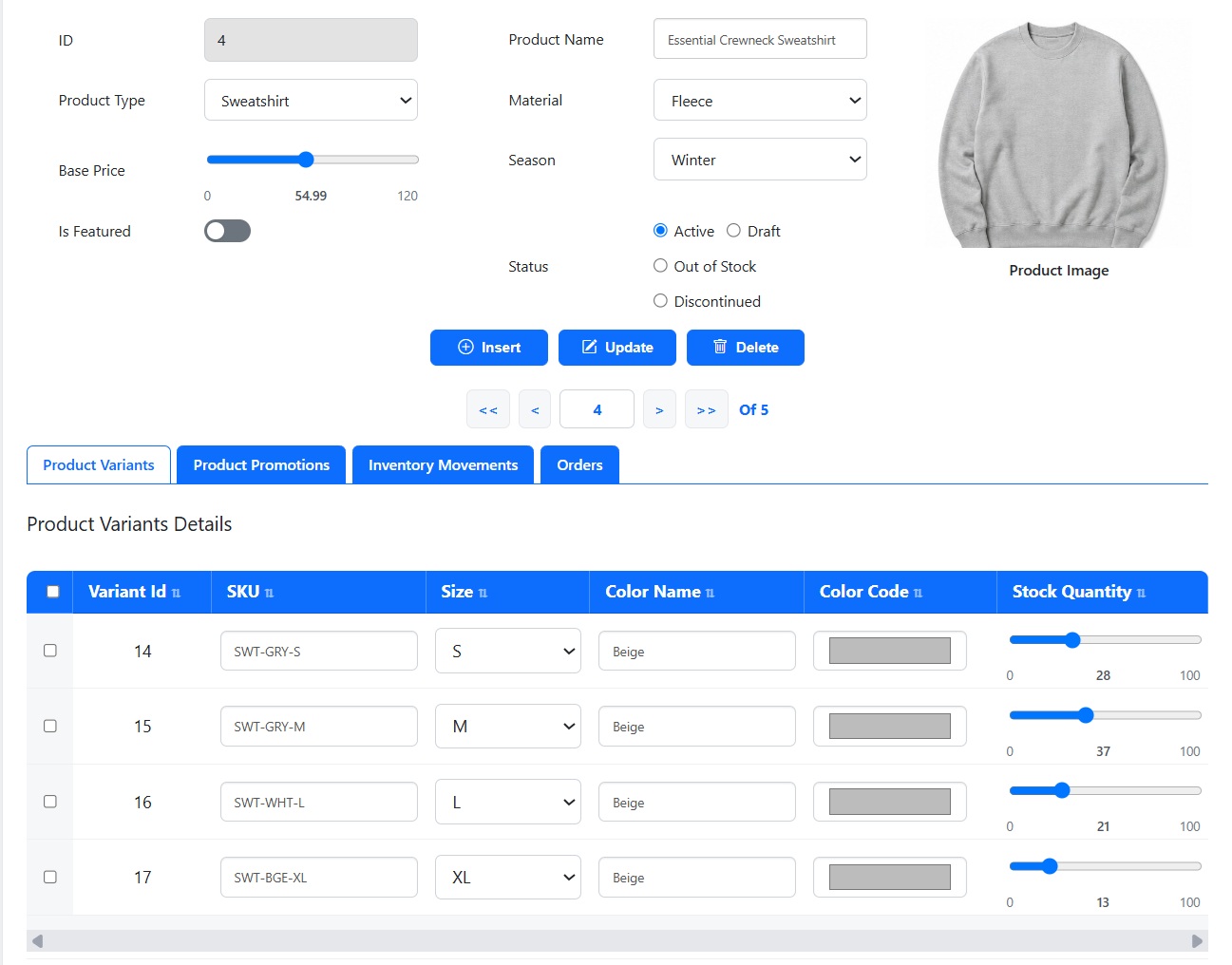
Create advanced master-detail forms for complex data relationships with one or multiple related detail sections. Display a Product with its Orders, or build a complete form combining Variants, Orders, Stock, Returns, and other related tables. Smart Form Maker keeps all connected data organized, clear, and manageable in one form.
Smart Form Maker automatically maps database columns to suitable form controls based on their data types, while giving you complete control to customize every mapping. A VARCHAR column, for example, can become a text box, custom drop-down, searchable country or U.S. state list, file uploader, or many other supported controls.
Map database columns that store file names or file data to file upload controls. Store uploaded files in your preferred folder structure or directly in the database, and display them as thumbnails, primary images, or download links. Define allowed file types and size limits, with client-side validation for immediate feedback.
Control how users interact with forms by enabling or disabling actions such as Insert, Update, Delete, and Search. Create insert-only forms, read-only views, or complete CRUD forms to match your workflow. All actions use AJAX, providing a fast, responsive experience without full-page reloads while users manage database records.
Process multiple records efficiently with editable grids in tabular and master-detail forms. Users can edit, insert, and update multiple records simultaneously, making bulk operations fast and user-friendly. File upload fields are fully supported, allowing users to upload and manage multiple files within a single operation.
Choose from flexible list and lookup controls for every field. Define custom lists directly in the form, use built-in lists such as Countries, U.S. States, and Week Days, generate lists from ENUM and SET columns, or use foreign-key lookups to display meaningful values from related tables instead of IDs, making data entry easier.
Customize every form field to create a clear and user-friendly data entry experience. Define meaningful column labels, configure advanced validation rules based on each field's requirements, and provide friendly custom error messages that clearly guide users when data is invalid. Build professional forms that help users enter data correctly.
Optionally display a confirmation page before final submission so users can review entered or modified data and return to make changes when needed. The confirmation page can also be printed as a receipt. Configure custom email alerts to be sent automatically for selected form actions, keeping users or administrators informed.
Quickly duplicate any existing form to create a new one with the same settings, then customize it as needed without starting from scratch. You can also reopen and edit previously created forms whenever requirements change, making it easy to reuse configurations, refine your forms, and speed up development across similar projects.
Get started quickly with a simple installation process designed for standard PHP environments, with no complicated setup required. Smart Form Maker supports PHP 7.4 through the latest PHP versions and works on shared hosting, VPSs, dedicated servers, and local web servers. Friendly technical support is also available whenever you need help.
Try Smart Form Maker Demo Version
A: Pick the form type that matches how your data needs to be viewed and edited:
Explore Form Types Supported in SFM 4.0 to see what each layout looks like and the use cases it suits best.
You can explore all of these features yourself by trying the fully functional online demo: https://sfmtrial.mysqlreports.com/SFM/login.php
A: Yes. Open the SFM home page, find the form in the list, and click the Edit (pencil) button. The wizard reopens with all of that form's settings already filled in, so you can choose a different form type and save.
A: Mapping is the decision of how each database column is presented to the user. A VARCHAR column could be a plain text box, an email field, a URL, a phone number, a dropdown list, or a file uploader. A TINYINT(1) could be a checkbox or a toggle. A DATE could be a date picker. The wizard proposes a sensible default for every column based on its database type, and you can change it.
A: Smart Form Maker automatically maps your database columns to appropriate form controls based on their data types, allowing you to generate a fully functional form in seconds. Each data type has a default mapping that is selected automatically, but many types also support multiple alternative mappings so you can choose the one that best matches your application's requirements and user experience.
Below are the supported mapping options by data type:
Textual data types (VARCHAR, CHAR, etc.)
ENUM and SET data types
Numeric data types (INT, DECIMAL, FLOAT, etc.)
Date and Time data types
File and BLOB data types
Boolean and BIT data types
Select the style that best fits your application's interface.
A: Yes. Smart Form Maker supports master-detail forms with multiple related detail sections in the same form. Using the Tabbed Master–Detail and Tabbed Master–Detail with Image Right form types, each related table is displayed in its own tab beneath the master record. For example, a Customer form can display the customer's Orders, Returns, and Invoices together in a single form, with each detail section having its own title, selected columns, and field mappings. This provides a complete view of all related information without leaving the form.
A: Yes. Mapping is per form. You can have a read-only tabular report of a table and a full editing form on the same table, each with its own mappings.
A: Yes. Smart Form Maker supports a wide variety of list and lookup controls, allowing you to choose the most appropriate source for each field:
This flexibility allows every field to use the most appropriate list type, resulting in forms that are easier to use and better suited to your application's data.
A: Changing a mapping changes how a column is displayed and validated, not what is stored. That said, some changes have practical consequences. For example, switching a file column from "file on disk" to "file in database" changes what new values mean, and tightening allowed file types or validation rules can make existing values fail validation the next time that record is saved. Review existing data after a change like that.
A: On the SFM home page, each row in the form list has a Duplicate button (the stacked-files icon). Click it and the wizard opens preloaded with that form's settings, but with the form name cleared so you must supply a new one. When you finish, a brand new folder is created under forms/ and the original form is left untouched.
A: Common reasons:
A: No. The wizard only writes form code and configuration. Your database tables and their rows are never dropped or rewritten by generating, editing, duplicating, or deleting a form.
A: The Image Right form types (Columnar Image Right, Master–Detail with Image Right, Tabbed Master–Detail with Image Right) reserve a panel on the right side of the form for one prominent image per record—a product photo, a staff portrait, a scanned document. The column that fills that panel is the main image column.
A: Yes. Smart Form Maker is a pure PHP application. You simply upload it to your server and start using it immediately. No command-line usage, no complex setup, and no server configuration are required.
A: Yes, your license is valid for life for the specific version you purchased. To keep you updated, we provide:
A: No. Smart Form Maker is designed for both technical and non-technical users. You can build PHP Forms through a wizard-based interface without writing PHP, SQL, or JavaScript code.
A: Yes. Smart Form Maker is a PHP MySQL Form Builder that supports both MySQL and MariaDB, allowing you to generate dynamic MySQL Forms from your existing databases.
A: Yes. Smart Form Maker supports master-detail forms, allowing you to manage data from two related tables on the same page. For example, you can manage customers and their orders in a single PHP Form. You can also follow this step-by-step tutorial to learn how to build master-detail forms.
A: You can create columnar forms, editable grids, mobile forms, justified forms, and master-detail forms. All generated PHP Forms use AJAX submission for a smooth user experience. Explore Form Types Supported in SFM 4.0.
A: Yes. There are usually cross-product promotions between Smart Report Maker (SRM), Smart Form Maker (SFM), and Smart Report Engine (SRE). Currently, the discount is typically around 25%, but it may change over time. When purchasing any product, check the "We Also Recommend" section on the checkout page to see the latest discounts available on the other products.
Try Smart Form Maker Demo Version