
Announcing Smart Form Maker 4.0
Smart Form Maker 4.0 is here—and it represents a major step forward in building professional CRUD forms directly from your MySQL and MariaDB databases.
Here are the key benefits the new version brings to you:
- More Form Types for More Use Cases — Build single or multi-record forms, image-focused forms where a Product, Employee, or Equipment image takes center stage, new Master-Detail layouts, and many other form types designed for different data-entry scenarios. Explore Form Types Supported in SFM 4.0.
- Advanced Master-Detail Forms Bring related tables together in a single form. For example, display a Product with its Variants, Orders, Stock, Returns, and other related data using Tabbed, Collapsible, and other Master-Detail layouts.
- Customizable Column-to-Field Mapping — Go beyond automatic data-type mapping and choose how each database column is represented. Map textual columns to text boxes, custom or built-in lists, Email, Phone or URL fields, color pickers, file uploaders, and more.
- Secure File Upload Handling — Build forms that securely upload, validate, store, and display files whether the files are stored directly in your database or in your application’s file system.
- A Smarter, Modernized Form-Building Wizard — Work faster with a redesigned wizard that lets you duplicate forms, save database connections, securely edit existing forms, control confirmation-page visibility, and benefit from many other requested workflow improvements.
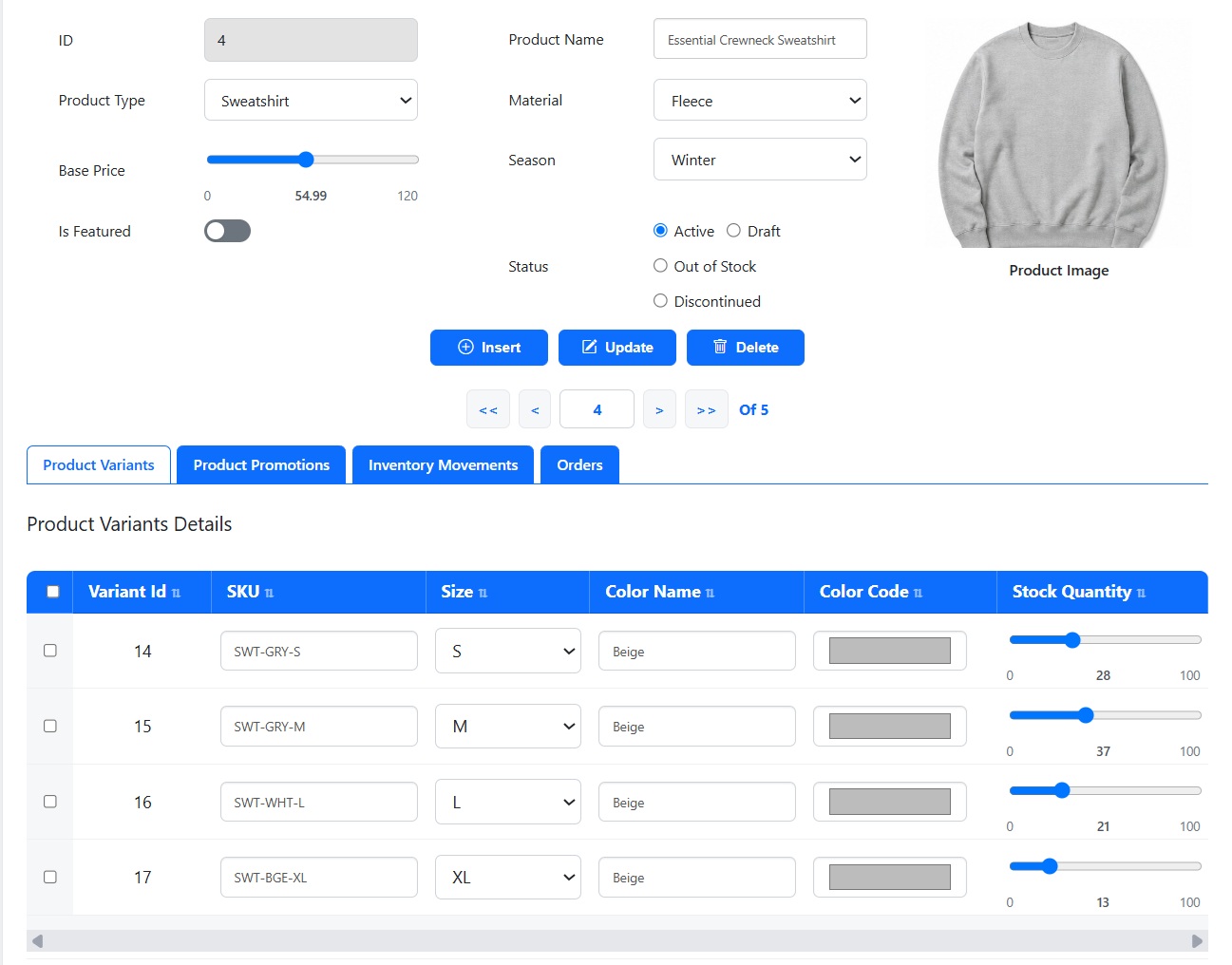
Tabbed Master-Detail Form Created with SFM 4.0
Key Highlights of SFM 4.0
New Form Layouts and Advanced Master-Detail Options
SFM 4.0 introduces several new form layouts, with a major focus on giving you more ways to present related data and image-centric records. These include Collapsible Master-Detail, Tabbed Master-Detail, Columnar with Image Right, Master-Detail with Image Right, Tabbed Master-Detail with Image Right, and other enhanced layouts designed for different data structures and use cases. Explore Form Types Supported in SFM 4.0.
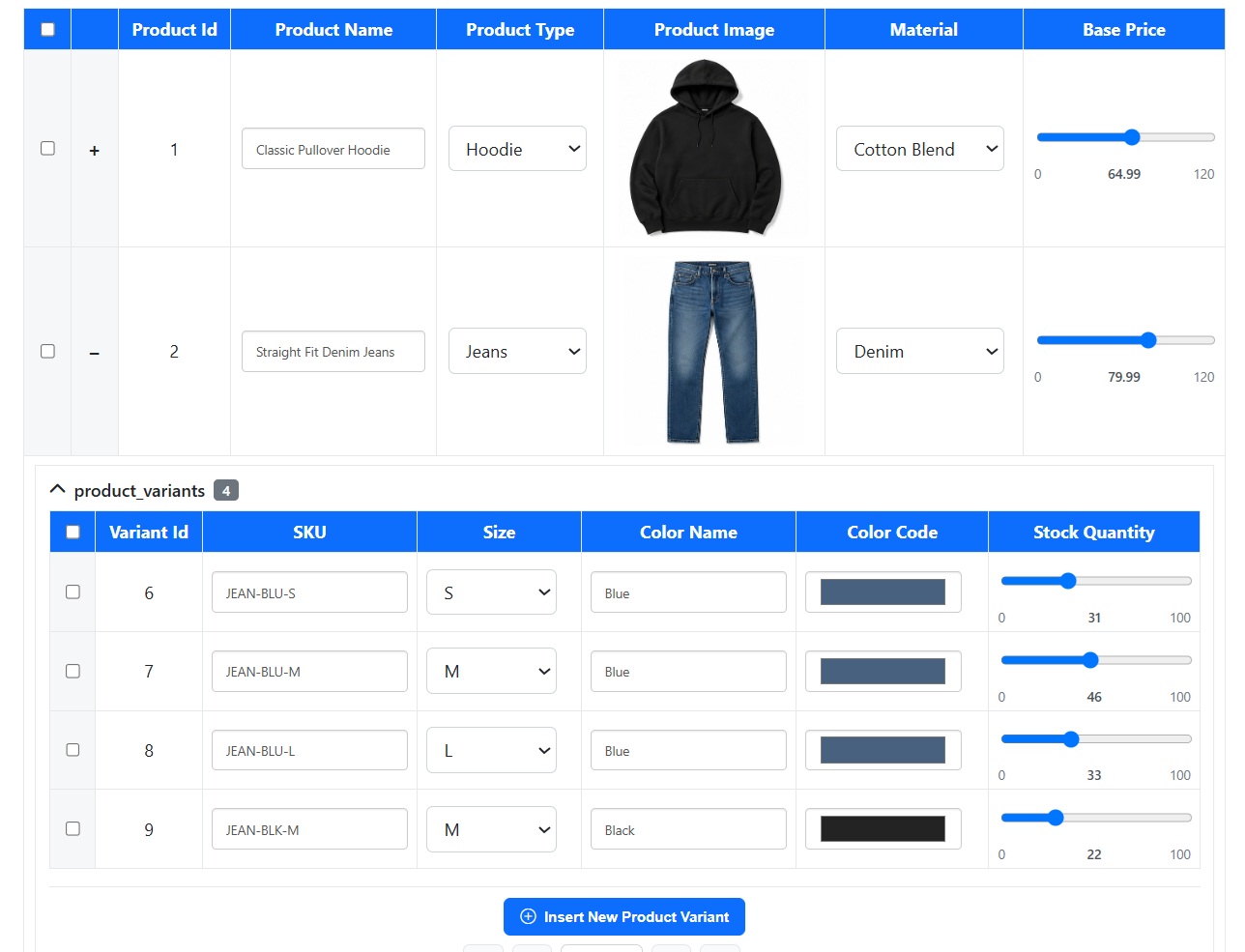
Collapsible Master-Detail Form Created with Smart Form Maker
- Need to display several related tables in one form? Use a Tabbed Master-Detail form to organize related datasets—such as Orders, Returns, Payments, and Notes—into separate tabs while keeping everything connected to the same master record.
- Need to browse multiple parent records with their related details? Use a Collapsible Master-Detail form, where each parent record can be expanded or collapsed to reveal its associated detail records. This is especially useful when you want to review many master records without opening a separate form for each one.
- Need to make an image the focal point of the form? Choose one of the Image Right layouts. These are available for single-record, Master-Detail, and Tabbed Master-Detail forms, making them ideal for Products, Employees, Equipment, Properties, or any record where a primary image is an important part of the data.
Together, these new layouts give you much greater flexibility in deciding how single records, related tables, and visual data should be presented to your users.
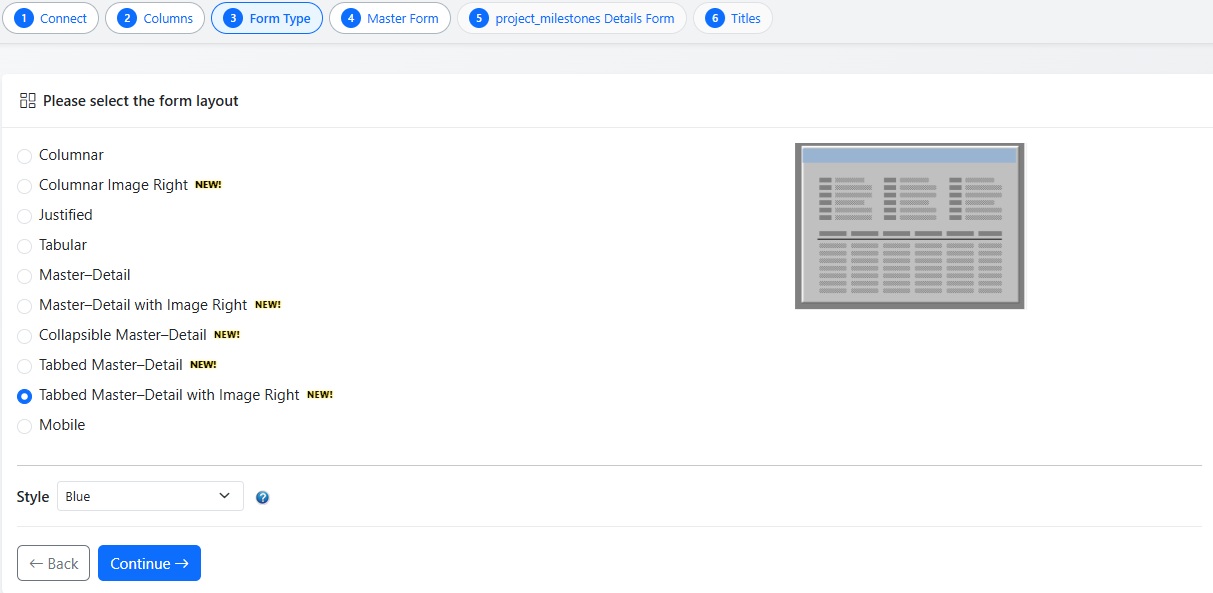
The SFM Wizard Step for Selecting a Form Type
Flexible Database Column-to-Field Mapping
SFM 4.0 introduces much greater flexibility in how your database columns are mapped to form fields. Smart Form Maker still analyzes each column’s data type and automatically suggests an appropriate form control, giving you a sensible default without additional configuration. However, that mapping is no longer something you are forced to accept—you can choose how each database column should actually be represented to the user.
For example, a textual database column does not have to appear as a standard text box. Depending on what that column represents in your application, you can map it to:
- Text Box or Text Area for regular text entry.
- Custom List where you define the available options directly while creating the form.
- Built-In Lists such as Countries, U.S. States, Week Days, and other ready-to-use lists.
- Specialized Fields for Email addresses, Phone numbers, URLs, Colors, and other specific types of input.
- File Uploader when the database column stores the name or path of an uploaded file.

Mapping Options for a Textual (VARCHAR) Database Column
The same concept applies to other database data types, with SFM providing suitable mapping options for numeric, date and time, ENUM, SET, Boolean, foreign key, file-related, and other columns. This means your database schema determines the data you store, but it does not dictate how that data must be presented or collected in your forms. You can keep SFM’s intelligent defaults where they make sense and customize individual fields wherever your application’s workflow requires something different.
Secure and Flexible File Upload Handling
SFM 4.0 greatly expands how file uploads can be handled directly through generated forms. Depending on how your application is designed, uploaded files can be stored directly inside your database, or SFM can save the actual files in your file system while storing only their file names in the corresponding database column. This gives you the flexibility to use the storage approach that best matches your existing database and application architecture.
File uploads can also be protected with configurable validation rules. You can control which file types are accepted, define maximum file sizes, and apply other validation requirements before files are stored, helping ensure that users can upload only files that meet the rules you define.
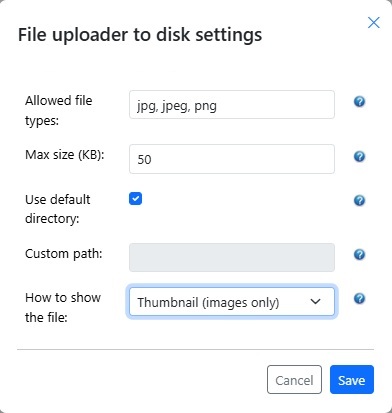
File Upload Settings for a Form Field
You also have control over how uploaded files are presented in the generated form. Images can be displayed as thumbnails or highlighted as a primary image, while documents and other files can appear as file names, download links, download icons, and other available display options. This allows the same file-handling functionality to work naturally across use cases such as product images, employee photos, equipment images, documents, attachments, and other uploaded content.
Redesigned Wizard with a Faster, More Flexible Workflow
SFM 4.0 introduces a redesigned and modernized form-building wizard that improves the overall workflow while adding several frequently requested capabilities. The familiar step-by-step approach remains easy to use, but the new design makes creating, reusing, and managing your forms and database connections considerably more efficient.
- Duplicate Existing Forms — Quickly create a new form based on an existing one, including its configuration and settings, and then customize the copy for a different purpose. Unlike editing, which modifies the original form, duplication preserves the original and creates a separate form you can change independently. This is especially useful when building several similar forms without configuring each one again from scratch.
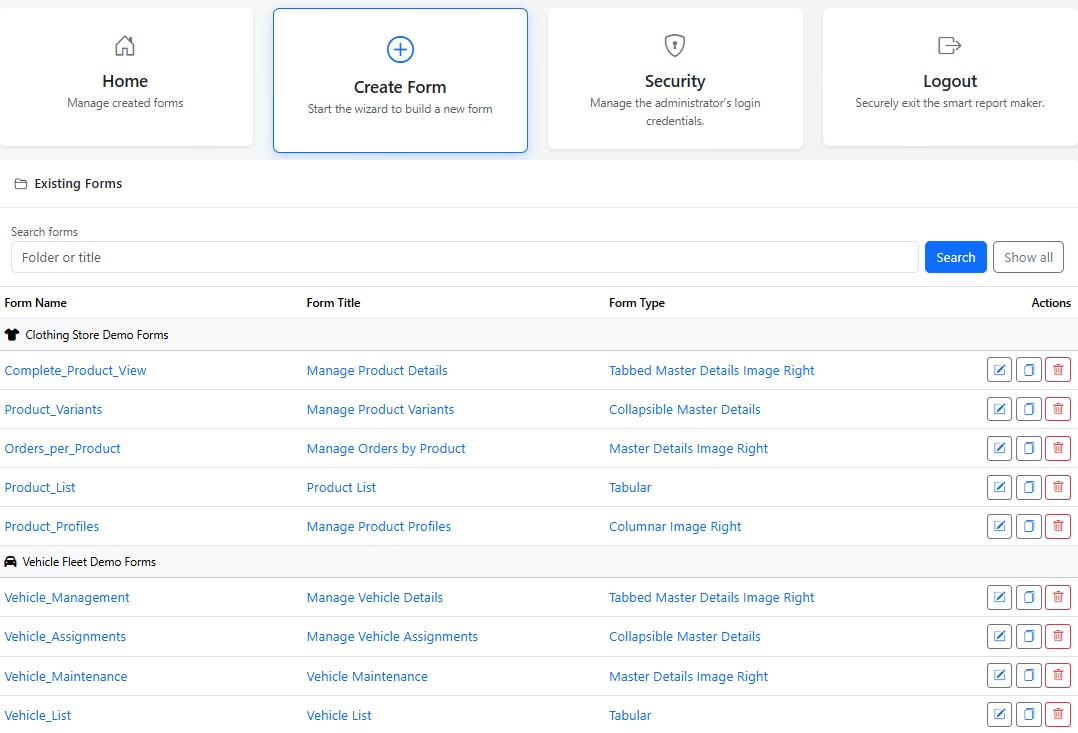
Easily and Securely Duplicate, Edit, or Delete Generated Forms
- Optional Confirmation Pages — Choose whether users should see a confirmation page before completing a form submission. When enabled, users can review the information they entered or modified before the final submission; when this extra step is not needed, the administrator can simply disable it for a faster workflow.
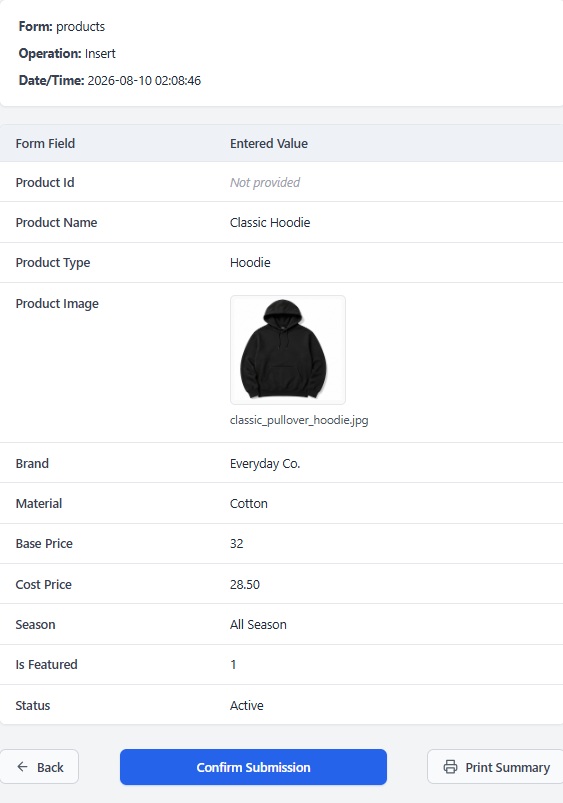
Enable or Disable the Confirmation Page to Match Your Workflow
- Save and Reuse Database Connections — Store your database connection configurations securely and reuse them whenever you create or edit forms. Instead of entering the same host, database, username, and other connection information each time, simply select a previously saved connection and continue building your form.
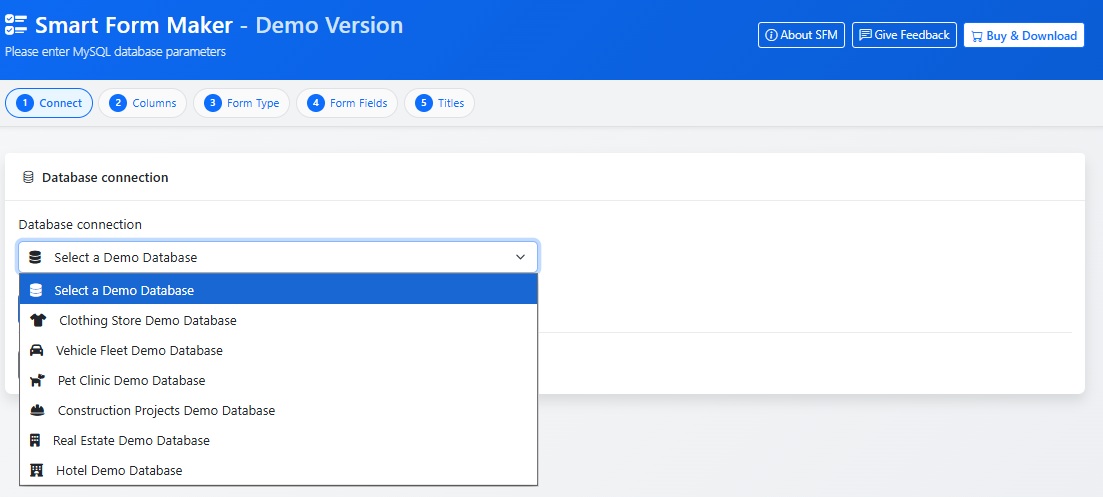
Save Database Connections and Reuse Them When Creating Forms
- PHP 7.4 and Newer Versions Supported — SFM 4.0 supports PHP 7.4 as well as current PHP releases, making it suitable for both existing environments and newer server configurations. Compatibility has been updated and previously reported PHP-version-related issues have been addressed, providing a more reliable experience across supported PHP environments.
Frequently Asked Questions
A: Yes. If you purchased Smart Form Maker within the last 6 months, you are eligible for a free upgrade to the new version. If you purchased Smart Form Maker more than 6 months ago, you are eligible for a 50% discount on the new version.
A: Pick the form type that matches how your data needs to be viewed and edited:
- Need to view or edit many records at once? Choose a Tabular form for spreadsheet-like viewing, quick searching, bulk editing, and processing multiple records simultaneously.
- Working with records that contain many fields? Use a Columnar or Justified form to display one record at a time in a clean, easy-to-read layout that’s ideal for data entry and editing.
- Need to emphasize a product, employee, or equipment image? Select one of the Image Right form types to give the primary image greater visual prominence while keeping related information organized.
- Need to display a parent record with its related records? Use a Master–Detail form to show a parent record (such as a Customer or Order) together with its related child records (such as Orders or Order Lines).
- Need to display several different related tables together? Choose a Tabbed Master–Detail form to organize multiple related datasets—such as Orders, Returns, Payments, and Notes—into separate tabs within the same form.
- Need to browse many parent records, each with expandable details? Use a Collapsible Master–Detail form where multiple parent records are listed together, and each record can be individually expanded or collapsed to reveal its related details.
- Building forms primarily for phones or tablets? Choose a Mobile form for a touch-friendly, responsive layout optimized for smaller screens.
Explore Form Types Supported in SFM 4.0 to see what each layout looks like and the use cases it suits best.
You can explore all of these features yourself by trying the fully functional online demo: https://sfmtrial.mysqlreports.com/SFM/login.php
A: Yes. Open the SFM home page, find the form in the list, and click the Edit (pencil) button. The wizard reopens with all of that form’s settings already filled in, so you can choose a different form type and save.
A: Mapping is the decision of how each database column is presented to the user. A VARCHAR column could be a plain text box, an email field, a URL, a phone number, a dropdown list, or a file uploader. A TINYINT(1) could be a checkbox or a toggle. A DATE could be a date picker. The wizard proposes a sensible default for every column based on its database type, and you can change it.
A: Smart Form Maker automatically maps your database columns to appropriate form controls based on their data types, allowing you to generate a fully functional form in seconds. Each data type has a default mapping that is selected automatically, but many types also support multiple alternative mappings so you can choose the one that best matches your application’s requirements and user experience.
Below are the supported mapping options by data type:
Textual data types (VARCHAR, CHAR, etc.)
- Text Box – Standard single-line text entry.
- Email, Phone, and URL fields – Built-in validation for common data types.
- Color Picker – Let users choose colors visually instead of entering color codes.
- Foreign Key Dropdown – Display values from a related table instead of numeric IDs.
- User-Defined Dropdown List – Create your own custom list of selectable values.
- Built-in Lists – Instantly use predefined lists such as Countries, U.S. States, Weekdays, or Yes/No values without creating lookup tables.
- File Upload to Disk – Store uploaded files in the file system while saving only the file name or path in your database. You can also control allowed file types, file size limits, storage location, and how uploaded files are displayed (thumbnail, download link, or icon).
ENUM and SET data types
- Automatically use the values already defined in your database.
- Display them as:
- Dropdown lists
- Radio buttons
- Multi-select lists
- Checkboxes
- No need to manually recreate the list options.
Numeric data types (INT, DECIMAL, FLOAT, etc.)
- Numeric Text Box – Accept only numeric input.
- Standard Text Box – When free-form entry is preferred.
- Range Slider – Allow users to select a value within a configurable minimum and maximum range.
- Foreign Key Dropdown – Ideal when the numeric column represents a relationship to another table.
Date and Time data types
- Calendar picker for dates.
- Date and time picker for DATETIME fields.
- Time picker for TIME fields.
- Makes entering valid dates and times fast and error-free.
File and BLOB data types
- Store files inside the database using BLOB columns.
- Store files on disk while saving only the file name or path in the database.
- Both approaches support upload restrictions and configurable display options such as image thumbnails or download links.
Boolean and BIT data types
- Checkbox
- Modern on/off switch
- True/False radio buttons
Select the style that best fits your application’s interface.
A: Yes. Smart Form Maker supports master-detail forms with multiple related detail sections in the same form. Using the Tabbed Master–Detail and Tabbed Master–Detail with Image Right form types, each related table is displayed in its own tab beneath the master record. For example, a Customer form can display the customer’s Orders, Returns, and Invoices together in a single form, with each detail section having its own title, selected columns, and field mappings. This provides a complete view of all related information without leaving the form.
A: Yes. Mapping is per form. You can have a read-only tabular report of a table and a full editing form on the same table, each with its own mappings.
A: Yes. Smart Form Maker supports a wide variety of list and lookup controls, allowing you to choose the most appropriate source for each field:
- Custom Lists – Define your own list of values directly while designing the form, without requiring a separate database table.
- Built-In Lists – Instantly use predefined lists such as Countries, U.S. States, Week Days, and many others.
- Database-Driven Lists – Automatically generate lists from database column types such as ENUM and SET.
- Foreign Key Lookups – Display meaningful values from related tables instead of IDs, making forms more intuitive and user-friendly.
This flexibility allows every field to use the most appropriate list type, resulting in forms that are easier to use and better suited to your application’s data.
A: Changing a mapping changes how a column is displayed and validated, not what is stored. That said, some changes have practical consequences. For example, switching a file column from “file on disk” to “file in database” changes what new values mean, and tightening allowed file types or validation rules can make existing values fail validation the next time that record is saved. Review existing data after a change like that.
A: On the SFM home page, each row in the form list has a Duplicate button (the stacked-files icon). Click it and the wizard opens preloaded with that form’s settings, but with the form name cleared so you must supply a new one. When you finish, a brand new folder is created under forms/ and the original form is left untouched.
A: Common reasons:
- Same table, different audience: one form with full permissions for staff, a read-only copy for others.
- Trying a different form type or colour theme without risking the working form.
- Using an existing form as a starting template for a similar table.
- Edit reuses the same form name and folder. When you save, the existing form is rewritten in place.
- Duplicate requires a new form name and creates an additional form. Nothing about the original changes.
A: No. The wizard only writes form code and configuration. Your database tables and their rows are never dropped or rewritten by generating, editing, duplicating, or deleting a form.
A: The Image Right form types (Columnar Image Right, Master–Detail with Image Right, Tabbed Master–Detail with Image Right) reserve a panel on the right side of the form for one prominent image per record—a product photo, a staff portrait, a scanned document. The column that fills that panel is the main image column.
A: Yes. Smart Form Maker is a pure PHP application. You simply upload it to your server and start using it immediately. No command-line usage, no complex setup, and no server configuration are required.
A: Yes, your license is valid for life for the specific version you purchased. To keep you updated, we provide:
- Lifetime Access: Once purchased, you can use your specific version of Smart Report Maker indefinitely with no recurring subscription fees.
- 6 Months Free Upgrades: Access to all new releases and patches.
- Discounted Renewals: After 6 months, upgrade at 60% off or more.
A: No. Smart Form Maker is designed for both technical and non-technical users. You can build PHP Forms through a wizard-based interface without writing PHP, SQL, or JavaScript code.
A: Yes. Smart Form Maker is a PHP MySQL Form Builder that supports both MySQL and MariaDB, allowing you to generate dynamic MySQL Forms from your existing databases.
A: Yes. Smart Form Maker supports master-detail forms, allowing you to manage data from two related tables on the same page. For example, you can manage customers and their orders in a single PHP Form. You can also follow this step-by-step tutorial to learn how to build master-detail forms.
A: You can create columnar forms, editable grids, mobile forms, justified forms, and master-detail forms. All generated PHP Forms use AJAX submission for a smooth user experience. Explore Form Types Supported in SFM 4.0.
A: Yes. There are usually cross-product promotions between Smart Report Maker (SRM), Smart Form Maker (SFM), and Smart Report Engine (SRE). Currently, the discount is typically around 25%, but it may change over time. When purchasing any product, check the “We Also Recommend” section on the checkout page to see the latest discounts available on the other products.