
Smart Form Maker supports a wide range of form types so you can choose the layout that best matches your data and the way your users need to work with it. Whether you want to display and edit a single record, create an Insert-only form for collecting new records, manage many records at once through an editable grid, highlight an important image, work from mobile devices, or bring related tables together in advanced Master-Detail layouts, SFM provides dedicated form types for different use cases.
This page explains the available form types in Smart Form Maker, what each one looks like, and the use cases for which it is best suited. Each example also links to the live Smart Form Maker demo so you can see the forms in action.
Columnar Forms are designed for working with one database record at a time. Each field is displayed clearly with its label and input control, making this layout especially suitable for records that contain several fields and need to be viewed or edited individually.
This is one of the most common form layouts and works well for use cases such as customer profiles, employee records, products, suppliers, appointments, and equipment records, where users need to focus on one record at a time.
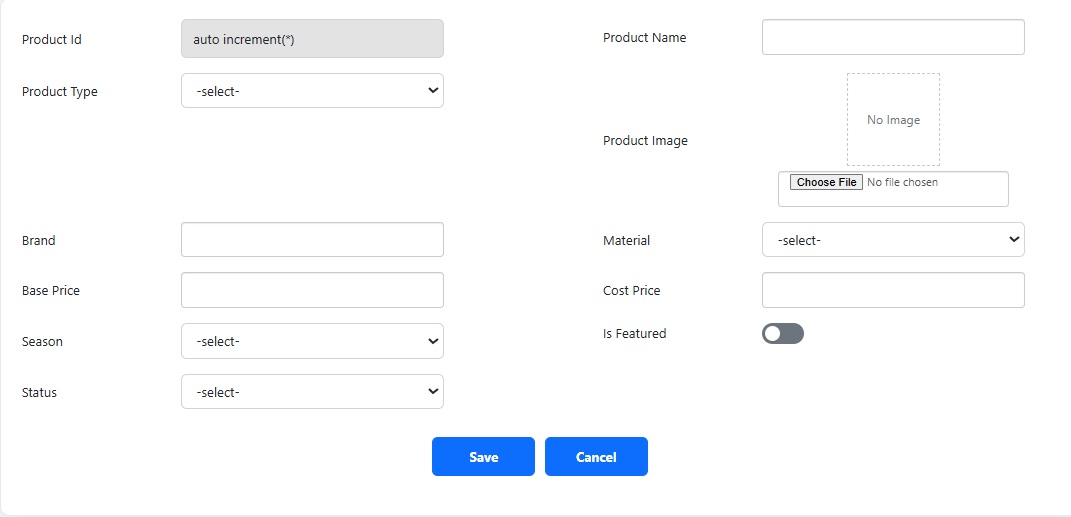
Columnar Forms are not limited to managing existing records. SFM lets you customize the available form actions, so you can create an Insert-only form when the purpose is simply to collect new records. This is useful for scenarios such as registration forms, applications, contact forms, requests, and other data-entry workflows. Alternatively, you can enable the required actions to create a complete CRUD form for inserting, viewing, updating, and deleting records.
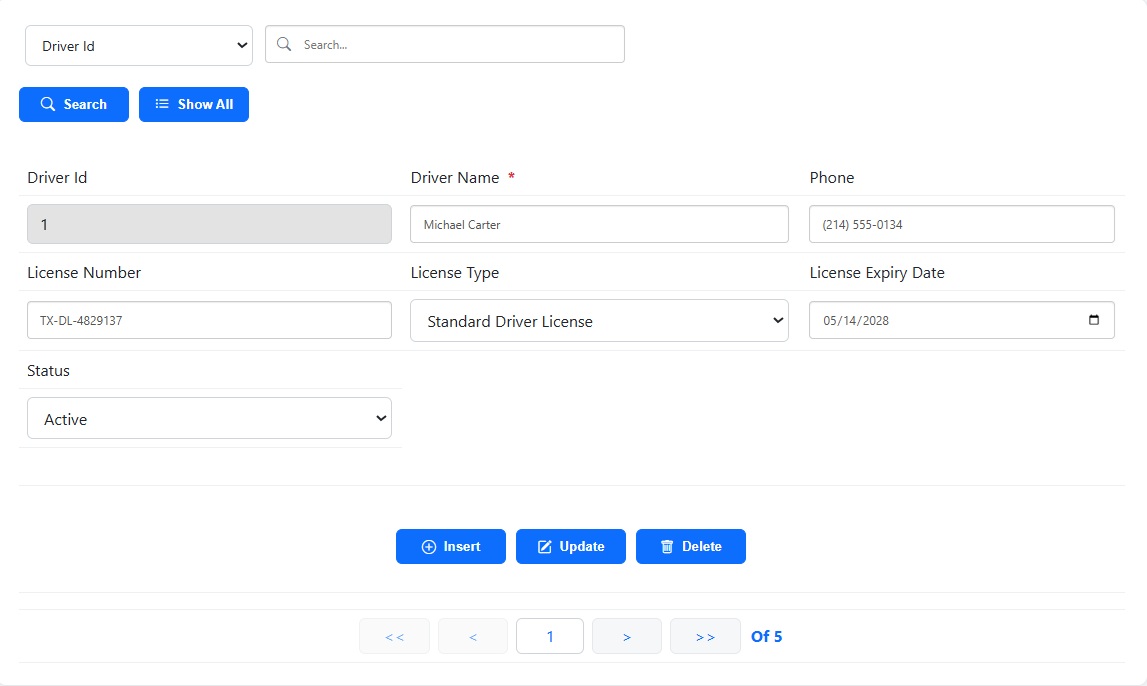
Justified Forms also display one record at a time, but arrange fields in a more compact and balanced layout. They are useful when you want to make better use of the available screen width while still keeping the form organized and easy to read.
This layout is particularly useful for records with many relatively short fields, where arranging fields efficiently can reduce scrolling and create a cleaner data-entry experience. Like other single-record forms in SFM, you can create an Insert-only form for scenarios such as registrations, applications, or data collection, or enable the required CRUD actions when users also need to view, edit, or delete existing records.
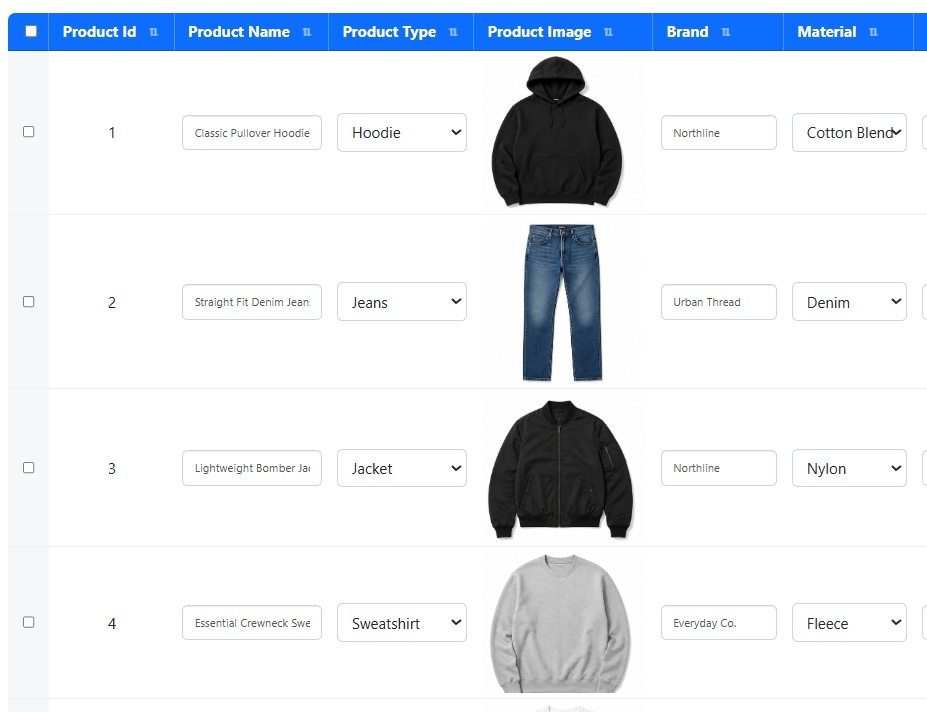
Tabular Forms are designed for displaying and managing multiple database records at the same time through an editable grid. Instead of opening each record separately, users can review many rows together and perform data-entry or editing operations directly within the grid.
This makes Tabular Forms particularly useful for bulk data entry, inventory updates, order management, pricing, attendance, transaction records, and other workflows where users regularly need to process or update multiple records efficiently.
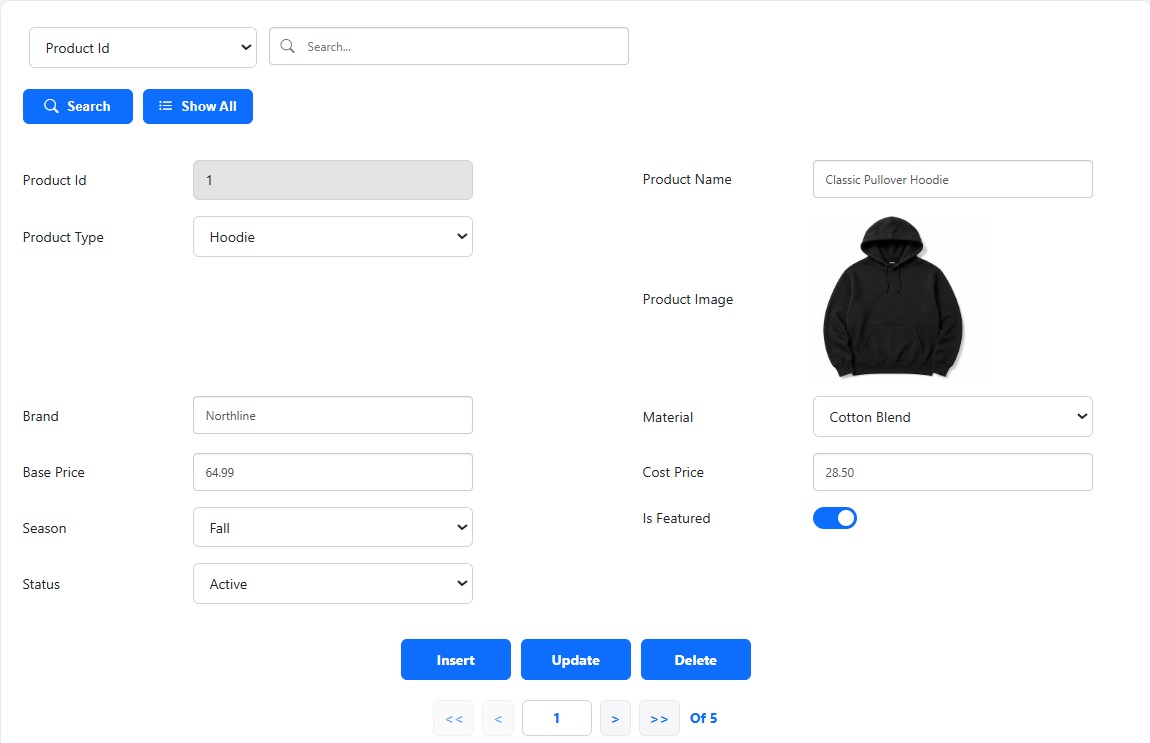
Columnar Forms with Image Right combine a single-record form with a prominent image displayed beside the record information. They are designed for data where an image is an important part of identifying or understanding the record.
This layout works especially well for products, employees, equipment, vehicles, hotel rooms, properties, and pets, or other records where a primary image should remain prominent while users work with the associated information. The available actions are fully configurable, so the form can be used as an Insert-only form for adding new records and their images, or as a complete CRUD form for managing both new and existing records.
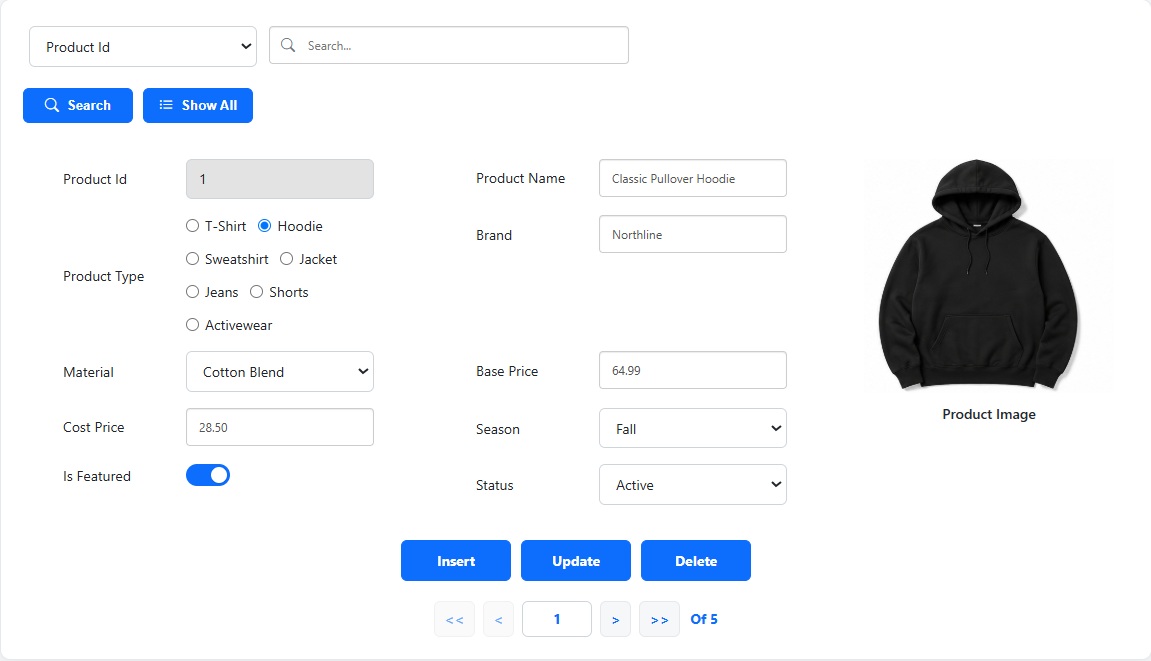
Master-Detail Forms are designed for related database tables where one main record has a set of associated child records. The master record is displayed together with its related details, allowing users to view and manage both levels of information from the same form.
Typical examples include a Customer with its Invoices, an Order with its Order Lines, a Project with its Tasks, or a Product with its Stock Movements. This layout is ideal when users need to work with a parent record and its directly related records without moving between separate forms.
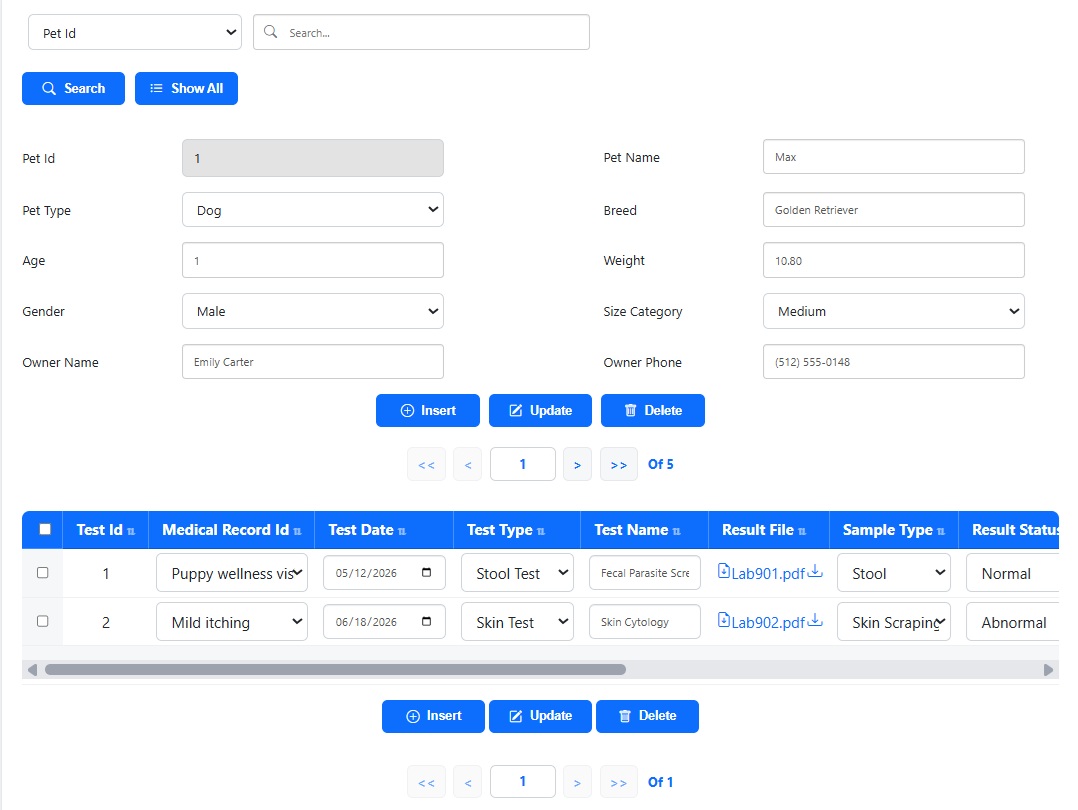
Master-Detail Forms with Image Right combine related Master-Detail data with a prominent primary image. The master record and its image remain visually connected while the associated detail records are displayed and managed within the same form.
This layout is particularly useful for scenarios such as a Product with its Orders or Stock, Equipment with its Maintenance Records, a Vehicle with its Service History, or a Property with related transactions, where both the primary image and related data are important to the user.
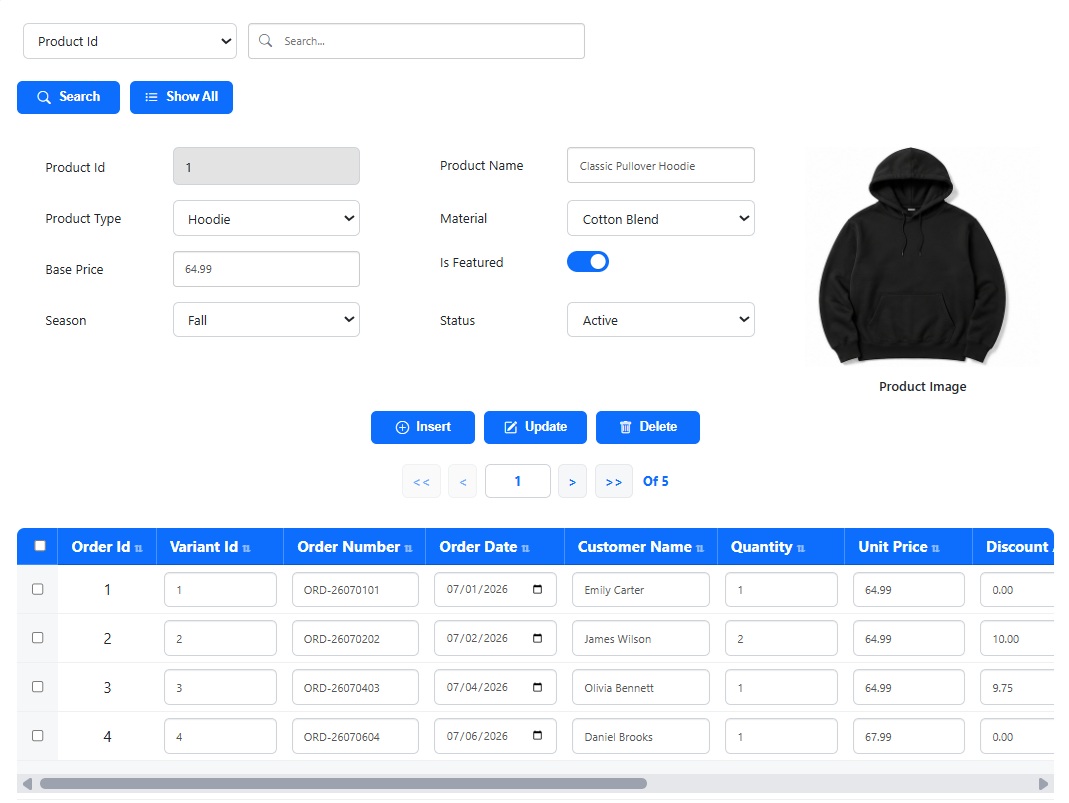
Tabbed Master-Detail Forms are designed for situations where one master record is related to several different detail tables. Each type of related data is organized into its own tab, allowing a large amount of information to remain accessible from one form without making the layout crowded.
For example, a single Product could have separate tabs for Variants, Orders, Stock, Returns, and Reviews. Users can move between these related datasets while keeping the same Product as the master record, providing a complete and organized view of its related information in one place.
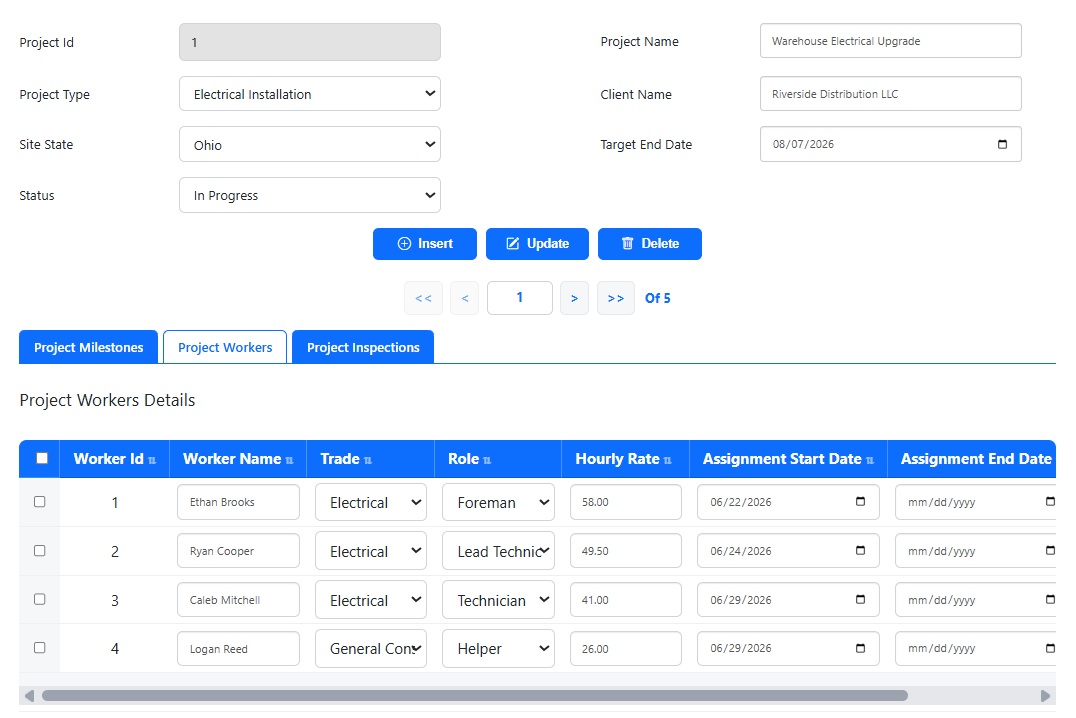
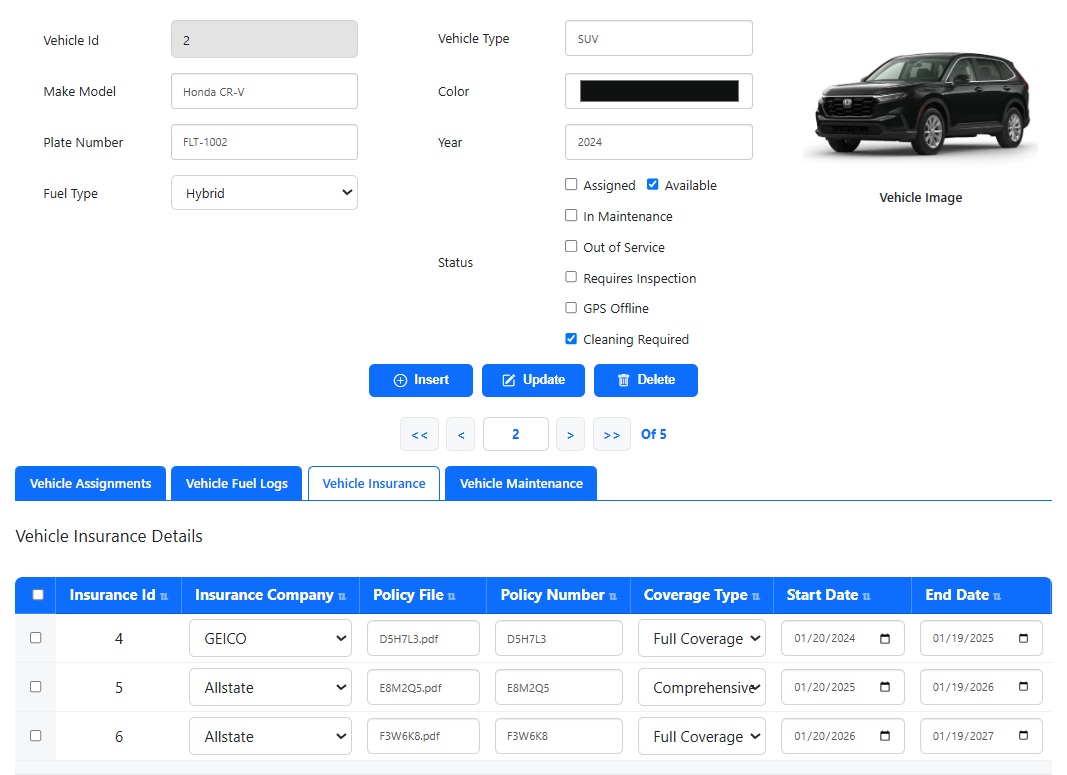
Tabbed Master-Detail Forms with Image Right extend the Tabbed Master-Detail layout by adding a prominent image for the master record. Users can keep the primary record and its image in focus while navigating through multiple categories of related information using separate tabs.
They are especially useful for image-oriented records such as Products, Vehicles, Equipment, Properties, and Employees that have several related datasets. For example, a Product image and its main information can remain visible while users navigate between its Variants, Orders, Stock, Returns, and other related tables.
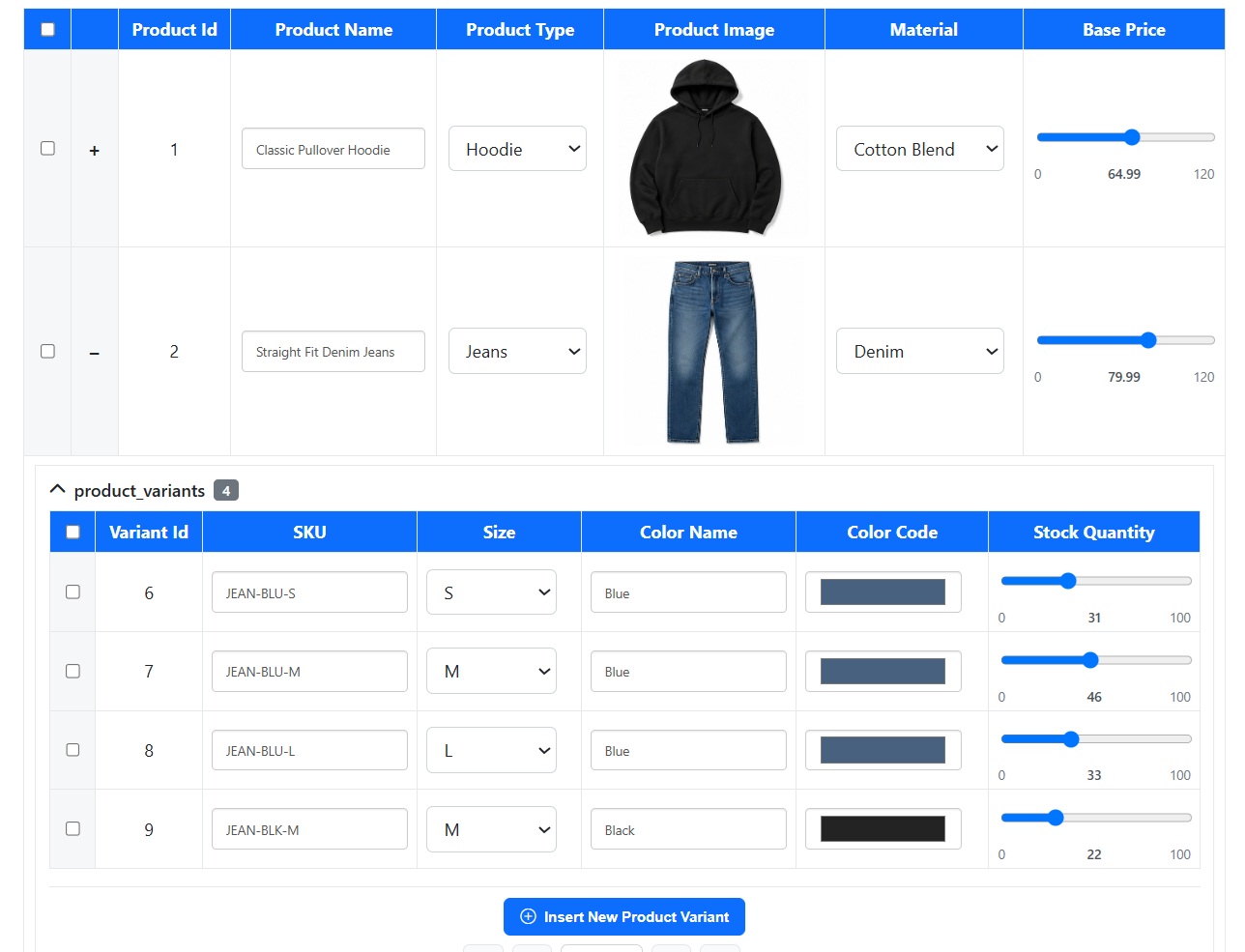
Collapsible Master-Detail Forms are designed for browsing multiple master records while still having immediate access to the details associated with each one. The master records are displayed together, and each record can be independently expanded to reveal its related details or collapsed when those details are not needed.
This layout is useful when users need a quick overview of many parent records without opening them individually. For example, you could display multiple Orders with expandable Order Lines, Projects with their Tasks, Customers with their Invoices, or Products with their Stock records, allowing users to move efficiently through a larger set of related data.
Mobile Forms are optimized for users who primarily access and manage data from smartphones or tablets. The form layout is designed to work naturally on smaller screens, making fields easier to view, enter, and edit using touch-based devices.
Mobile Forms are particularly useful for field teams, technicians, inspectors, sales representatives, delivery staff, and other users who need to insert or update database records while working away from a desktop computer. As a single-record form type, Mobile Forms can also be configured for Insert-only workflows or for broader CRUD operations depending on the actions you enable.
A: Yes. Smart Form Maker supports a wide variety of form types, allowing you to choose the one that best fits your specific use case. All form types are included—you simply select the layout that matches how your data should be displayed and edited. For example:
You can see the different form types in action in the online demo: https://sfmtrial.mysqlreports.com/SFM/login.php
A: Yes. Open the SFM home page, find the form in the list, and click the Edit (pencil) button. The wizard reopens with all of that form’s settings already filled in, so you can choose a different form type and save.
A: Yes. Smart Form Maker supports master-detail forms with multiple related detail sections in the same form. Using the Tabbed Master–Detail and Tabbed Master–Detail with Image Right form types, each related table is displayed in its own tab beneath the master record. For example, a Customer form can display the customer’s Orders, Returns, and Invoices together in a single form, with each detail section having its own title, selected columns, and field mappings. This provides a complete view of all related information without leaving the form.
A: Yes. Smart Form Maker supports master-detail forms, allowing you to manage data from two related tables on the same page. For example, you can create a single form to manage customers and their orders, where the master record and its related detail records are handled together. You can also follow this step-by-step tutorial to learn how to build master-detail (sub-form) forms in Smart Form Maker
A: Smart Form Maker allows you to generate multiple form types—including columnar forms, editable grids, mobile forms, justified forms, and master-detail forms. All generated forms use AJAX-based technology, enabling data submission without refreshing the page for a smooth user experience.
A: The Image Right form types (Columnar Image Right, Master–Detail with Image Right, Tabbed Master–Detail with Image Right) reserve a panel on the right side of the form for one prominent image per record—a product photo, a staff portrait, a scanned document. The column that fills that panel is the main image column.
A: Mapping is the decision of how each database column is presented to the user. A VARCHAR column could be a plain text box, an email field, a URL, a phone number, a dropdown list, or a file uploader. A TINYINT(1) could be a checkbox or a toggle. A DATE could be a date picker. The wizard proposes a sensible default for every column based on its database type, and you can change it.
A: Smart Form Maker automatically maps your database columns to appropriate form controls based on their data types, allowing you to generate a fully functional form in seconds. Each data type has a default mapping that is selected automatically, but many types also support multiple alternative mappings so you can choose the one that best matches your application’s requirements and user experience.
Below are the supported mapping options by data type:
Textual data types (VARCHAR, CHAR, etc.)
ENUM and SET data types
Numeric data types (INT, DECIMAL, FLOAT, etc.)
Date and Time data types
File and BLOB data types
Boolean and BIT data types
Select the style that best fits your application’s interface.
A: Yes. Smart Form Maker supports a wide variety of list and lookup controls, allowing you to choose the most appropriate source for each field:
This flexibility allows every field to use the most appropriate list type, resulting in forms that are easier to use and better suited to your application’s data.
A: Yes. Mapping is per form. You can have a read-only tabular report of a table and a full editing form on the same table, each with its own mappings.
A: Changing a mapping changes how a column is displayed and validated, not what is stored. That said, some changes have practical consequences. For example, switching a file column from “file on disk” to “file in database” changes what new values mean, and tightening allowed file types or validation rules can make existing values fail validation the next time that record is saved. Review existing data after a change like that.